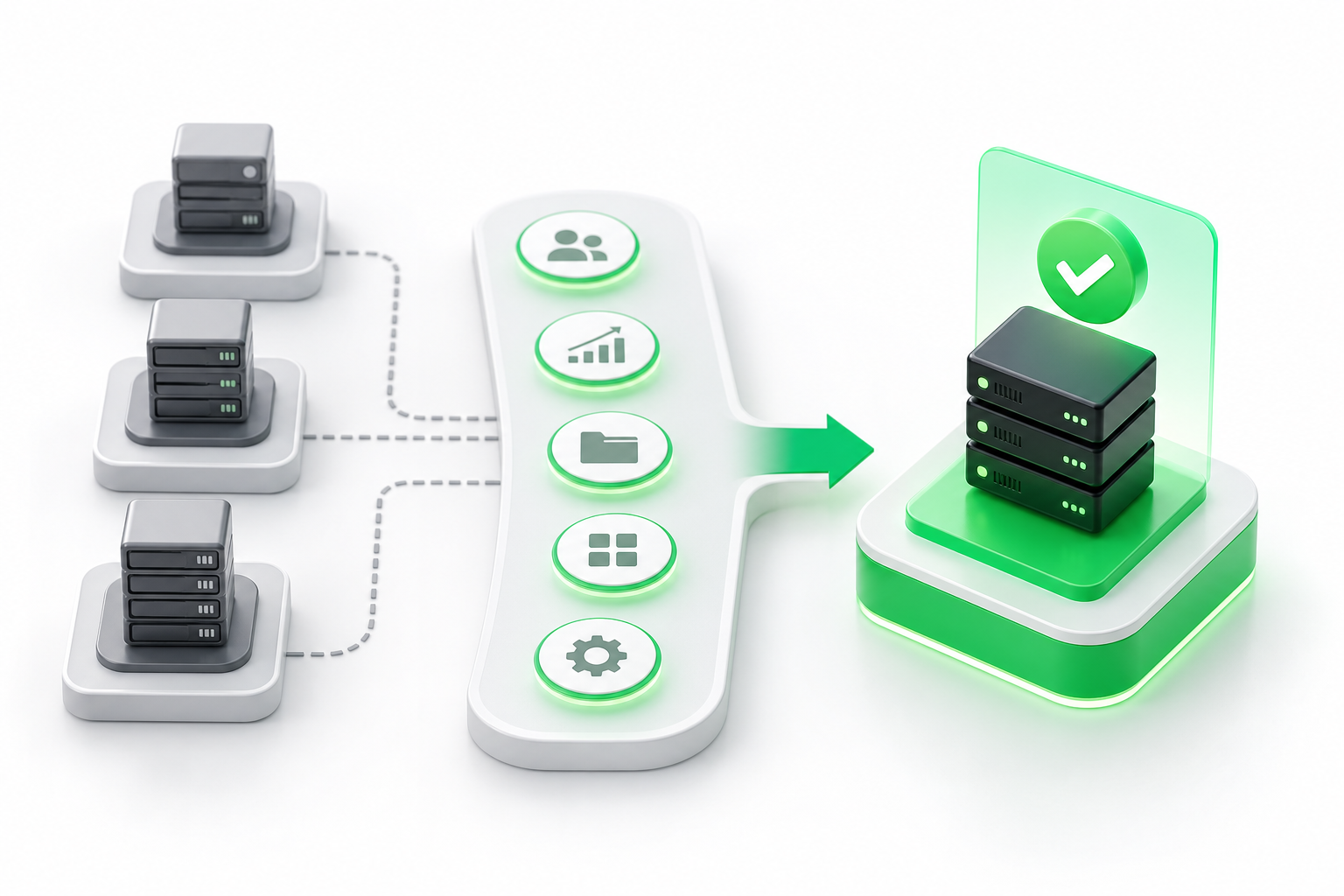
Windows dedicated server hosting gives you a physical machine running Windows Server exclusively for your workloads. In 2026, the key decisions are hardware tier, licensing model (SPLA or BYOL), Windows Server version, and RDP security hardening. Getting those four choices right determines performance, compliance, and total cost before you ever deploy an application.
This guide walks through every decision in the order you actually face it, from picking a server version to locking down remote access. If you are still weighing whether a fully dedicated machine is the right fit or whether a virtualized option might do the job, read about o que é VDS before continuing here.
Hosting providers deliver a dedicated Windows server by assigning you a physical machine in their data center, installing the Windows Server OS image you select, and handing you network access and credentials. The provider manages the hardware layer: power, cooling, and physical connectivity. Everything from the OS upward is yours to configure unless you choose a managed plan.
Why Choose Windows Dedicated Server Hosting in 2026?
Windows dedicated hosting is the right fit for workloads that need isolated hardware, not shared resources. If you run.NET applications, SQL Server, Active Directory domain controllers, or Windows-specific licensing that ties to physical core counts, a dedicated machine removes the variables that cloud and VPS environments introduce.
The numbers back up how widely Windows is deployed across enterprise infrastructure. Research from Persistence Market Research estimates that Windows holds approximately 58% of the global server operating system market based on commercial revenue and deployments. That figure covers enterprise data centers, internal IT environments, and hosted workloads, not just public-facing websites. W3Techs data shows Windows on only 8.3% of web-facing servers with an identifiable OS, which tells a different story: Windows dominates behind the firewall, not on the open web. Both figures are accurate; they measure different things.
For workloads that fit that enterprise profile, bare-metal hardware matters. A dedicated server gives you full CPU and RAM allocation, no noisy-neighbor effects, and the ability to configure storage exactly as your application expects. NVMe-based dedicated servers, for example, cut the I/O bottleneck that SQL Server and large Active Directory environments hit on older SATA-backed machines.
A domain controller on shared infrastructure can experience authentication delays during replication; a SQL Server workload may hit I/O contention from noisy neighbors. For a lighter workload, shared resources may be fine. The guide on Servidor Dedicado Bare Metal vs VPS: Qual Escolher em 2026? breaks down exactly where that line sits.
The North American dedicated host market accounted for 41.2% of global revenue in 2025, which reflects how much enterprise spending has moved toward dedicated infrastructure. If your workload is growing, locking in dedicated hardware now gives you a stable foundation rather than chasing capacity on shared platforms.
Which Windows Server Version Should You Run in 2026?
The short answer is Windows Server 2022 or 2025. Both are in mainstream support, both receive security patches, and both support the hardware generations most providers offer today.
Windows Server 2019 is still in extended support through January 2029, so it remains safe for legacy workloads, but plan migration now to avoid a forced move later.
Windows Server 2016 is the version to watch. It is scheduled to reach end of extended support on 12 January 2027. That gives you roughly one year from now to migrate any 2016 workloads. After that date, Microsoft will no longer issue free security patches. You can pay for Extended Security Updates (ESU), but those add cost and complexity. If you are evaluating a new dedicated server today, do not start a 2016 deployment.
Windows Server 2025 is the current flagship release. It ships with several features that matter specifically for dedicated hardware: hotpatching, which applies certain security updates without a reboot; improved NVMe storage support with higher queue depths; and updated SMB compression for faster file transfers across local networks. If your provider supports 2025 and your application stack is compatible, it is the strongest long-term choice.
Windows Server 2022 is the practical middle ground. It is widely supported by hosting providers, well-documented, and stable for production workloads. Most enterprise applications that run on 2019 run on 2022 without changes.
A few questions help narrow the choice:
- Does your application vendor certify a specific Windows Server version? Start there.
- Are you running SQL Server 2019 or later? Both 2022 and 2025 are certified.
- Do you need hotpatching to minimize downtime windows? Choose 2025.
- Is your team more comfortable with a version they already manage internally? 2022 is the safest match for most existing Windows shops.
Pick a version before you provision. Most providers let you select the OS image at order time, and switching later means a full reinstall.
How to Set Up a Windows Dedicated Server: Step-by-Step
Provisioning a Windows dedicated server involves more decisions than a Linux box because licensing is baked into the process from the start. Follow these steps in order.
Define your workload requirements. Before you touch a provider's order form, list the CPU core count, RAM, and storage your application needs. SQL Server, for example, licenses by physical core, so underspecifying cores to save money can create a licensing gap. Write down your minimum and your 12-month growth target.
Choose a licensing model. You have two paths [S1]. SPLA (Services Provider License Agreement) means the hosting provider holds the Microsoft license and bills you a monthly fee that includes the Windows Server license. BYOL (Bring Your Own License) means you supply a license you already own, typically from a volume licensing agreement, and the provider installs it on your hardware. SPLA is simpler for most buyers. BYOL makes sense if you have existing volume licenses with Software Assurance that cover dedicated server use rights.
Select your hardware tier and provider. Entry-level Windows dedicated server plans sit at a modest price point based on a market survey of 60 hosts. That benchmark gives you a floor for budget planning, not a ceiling. Look for NVMe storage, a current-generation CPU (AMD EPYC or Intel Xeon Scalable), and a data center location that matches your user base. The servidores bare metal option suits teams whose users or compliance requirements point to a North American data center.
Choose your Windows Server version. Apply the criteria from the previous section. Confirm the provider supports your chosen version as a standard image before you order.
Provision the server and verify delivery. Most providers complete provisioning within a few hours for stock configurations. You will receive login credentials and an IP address. Confirm the server responds to ping and that the RDP port is reachable before proceeding.
Connect via RDP and complete initial OS configuration [S2]. Use Remote Desktop Protocol with the administrator credentials your provider supplies. Once connected, run Windows Update immediately, set the correct time zone, rename the server to match your naming convention, and join the domain if applicable. Do not expose the server to production traffic until the next step is complete.
Harden RDP and configure the firewall. This step is covered in detail in the security section below, but treat it as part of provisioning, not an afterthought. An unprotected RDP port on a public IP is scanned within minutes of going live.
SPLA vs. BYOL: Which Windows Licensing Model Is Right for You?
Windows licensing is one of the first real decision points when you order a dedicated server, and getting it wrong costs money in either direction. The two paths are SPLA and BYOL, and they suit different buyers.
SPLA, or Services Provider License Agreement, is a model where your hosting provider holds the Microsoft license and passes the cost to you as part of your monthly server fee. You do not manage a license key, track Software Assurance, or worry about audit compliance on your end. The provider handles that. This is the default for most buyers who are purchasing dedicated hosting for the first time or who do not already own Windows Server volume licenses.
BYOL (Bring Your Own License) means you supply a license from your existing Microsoft volume licensing agreement, and the provider installs it on your hardware. This makes sense if your organization already holds licenses with active Software Assurance that grant dedicated server use rights. Using those licenses on hosted hardware avoids paying twice for the same entitlement.
The choice between Windows Server Standard and Datacenter editions adds another layer. Standard covers up to two virtual machines per licensed server. Datacenter covers unlimited VMs on the same physical host. If you plan to run more than two Hyper-V guests on a single machine, Datacenter becomes cheaper per VM than stacking Standard licenses. That crossover happens at two VMs, so if your workload is purely physical or runs only one or two guests, Standard is the right edition.
One cost data point worth knowing: according to Zinstall's 2026 research, security updates for Windows Server 2016 cost $5.21 per core monthly when managed via Azure Arc. That figure is specific to Microsoft's Azure Arc program, not a general hosting benchmark, but it illustrates how quickly extended support costs accumulate on an aging OS version. Migrating to a current version before end-of-support avoids that bill entirely.
A simple rule: choose SPLA if you are buying hosting without pre-existing Microsoft volume licenses. Choose BYOL if your IT team already manages a volume licensing agreement and your Software Assurance terms permit it. When in doubt, ask your provider which model they support and whether BYOL requires any specific license mobility rights before you order.
How Do You Secure RDP on a Windows Dedicated Server?
Remote Desktop Protocol (RDP) is the default way to manage a Windows dedicated server, and its well-known default port is one of the most scanned on the internet. A server with an open RDP port and a public IP address will see automated login attempts within minutes of provisioning. Hardening RDP is not optional; it is part of the setup process.
Follow this checklist before you route any production traffic to the server:
Change the default RDP port. Move RDP off its default port to a non-standard high-numbered port. This does not stop a determined attacker, but it eliminates the bulk of automated scans that target the default specifically.
Enable Network Level Authentication (NLA). NLA requires the connecting user to authenticate before a full RDP session opens. Enable it in the Remote Desktop settings on the server.
Restrict RDP access by IP address. Use the Windows Firewall or your provider's network-level firewall to allow RDP connections only from your office IP ranges or VPN exit nodes. A blanket block on all other sources removes the attack surface almost entirely.
Add multi-factor authentication (MFA). Even with NLA enabled, a stolen password can open an RDP session. MFA adds a second factor that a credential-stuffing attack cannot bypass. Windows Server 2022 and 2025 support MFA through third-party Remote Desktop Gateway solutions.
Use a VPN or bastion host for access. The strongest posture keeps RDP off the public internet entirely. Place the server behind a VPN, and require staff to connect to the VPN before RDP is reachable. A bastion host serves the same purpose in cloud-adjacent setups.
Audit and limit local administrator accounts. Rename the default Administrator account, disable accounts that are not in active use, and enforce a strong password policy. Automated attacks target the default account name by convention.
Review RDP session logs regularly. Windows Event Viewer logs failed and successful RDP logins. Set up alerts for repeated failed attempts from a single IP and block those addresses at the firewall.
Apply all seven steps before the server handles live traffic. Skipping even one, particularly IP restriction or NLA, leaves a meaningful gap.
Managed vs. Unmanaged Windows Dedicated Hosting: What Is the Difference?
The managed versus unmanaged distinction changes how much work lands on your team after provisioning. Both options give you a dedicated physical server, but they differ in who handles the operating system layer and everything above it.
With an unmanaged server, the provider is responsible for the physical hardware, network connectivity, and power. Everything from the OS installation onward is yours to handle: Windows updates, security patches, firewall configuration, backup schedules, and application installation. Unmanaged hosting is cheaper and gives you full control, but it requires at least one person on your team who is comfortable administering Windows Server at the command line and through Server Manager.
A managed server adds a layer of provider support on top of the hardware. Depending on the plan, the provider may handle OS updates, security patching, monitoring, and incident response. Some managed plans include control panel setup (cPanel, Plesk, or DirectAdmin) and periodic health checks. You still control your applications and data, but you are not solely responsible for keeping the OS secure and current.
The right choice depends on your team. If you have a dedicated sysadmin who manages Windows Server environments day to day, unmanaged hosting gives you more flexibility at a lower cost. If your team is focused on application development and does not have deep Windows Server expertise, a managed plan reduces operational risk significantly.
For teams building on VPS and dedicated infrastructure more broadly, the guide on hospedagem VPS e infraestrutura de servidores covers how managed and unmanaged tiers compare across different server types, which helps frame the decision before you commit to a plan.
Before you sign up, ask specifically what the provider patches, how quickly they respond to security incidents, and whether OS-level changes require a support ticket or can be done directly. The answers tell you more than the plan name does.
What to Look for in the Best Windows Dedicated Server Hosting Provider
The best Windows dedicated server hosting provider meets four criteria: current-generation hardware (AMD EPYC or Intel Xeon Scalable), NVMe storage, confirmed Windows Server licensing support (SPLA or BYOL), and a data center location that matches your compliance or latency requirements.
Also check the SLA uptime guarantee, whether support is available around the clock, and whether the provider offers managed options if your team needs them. Use those four hardware and licensing criteria as your evaluation framework before you commit.
Napoleon is a hosting provider that offers bare-metal dedicated servers in the USA with NVMe storage and 24/7 support, for teams whose users or compliance requirements point to a North American data center. You can also review the full O que é Bare Metal? Guia Completo to understand what bare-metal hardware means before you order.
FAQs
Can I run SQL Server on a Windows dedicated server without a separate SQL license?
No. SQL Server requires its own Microsoft license regardless of what OS license you hold. The Windows Server license (whether SPLA or BYOL) covers only the operating system. SQL Server Standard and Enterprise editions are licensed separately, typically by physical core count on a dedicated machine. Confirm with your provider whether they offer SPLA-based SQL Server licensing bundled with the server, which can simplify billing.
What is the difference between a dedicated server and a bare-metal cloud instance?
A dedicated server gives you a physical machine assigned exclusively to your workloads, typically at a fixed monthly cost. A bare-metal cloud instance also gives you single-tenant physical hardware, but through a cloud platform rather than a traditional hosting contract. Dedicated servers suit stable, long-running workloads where predictable cost matters. Bare-metal cloud instances suit workloads with variable demand that need physical hardware only periodically.
Does Windows Server 2025 support hotpatching without a reboot on dedicated hardware?
Yes, Windows Server 2025 includes hotpatching support, which applies certain security updates to running processes in memory without requiring a reboot. This reduces planned downtime windows for patching cycles. Not every update qualifies for hotpatching, so some cumulative updates will still require a restart, but the feature significantly cuts the frequency of required reboots compared to earlier Windows Server versions.
How does data center location in the US versus Europe affect latency for Windows workloads?
Round-trip latency between a US East Coast data center and a user in Western Europe typically runs 80 to 120 milliseconds. For interactive applications, that gap is noticeable. For batch processing, background jobs, or internal tools used by a US-based team, a US data center is the right default. If most of your end users are in Europe, a European data center reduces latency meaningfully. Active Directory and SQL Server are both sensitive to latency on replication and query paths, so location matters more for those workloads than for static file hosting.
Is Windows dedicated server hosting suitable for hosting Active Directory domain controllers?
Yes, and dedicated hardware is often the preferred choice for domain controllers. Active Directory requires consistent low-latency access to its database and replication partners. On shared or virtualized infrastructure, noisy-neighbor effects can introduce latency spikes that affect authentication and Group Policy processing. A dedicated server eliminates that risk. You should still follow Microsoft's guidance on placing at least two domain controllers for redundancy, ideally in separate physical locations.
What happens to my server when Windows Server 2016 reaches end of support in January 2027?
The server keeps running. End of support does not shut anything down. What stops is Microsoft's issuance of free security patches for Windows Server 2016. After 12 January 2027, newly discovered vulnerabilities will not receive patches unless you enroll in Microsoft's Extended Security Updates (ESU) program, which carries a per-core monthly fee. Running an unpatched OS on a public-facing server is a significant security risk. Plan your migration to Windows Server 2022 or 2025 before that date.
Conclusion
Windows dedicated server hosting puts isolated physical hardware under your workloads, which matters when you run SQL Server, Active Directory, or.NET applications that depend on consistent CPU, RAM, and storage performance. The decisions that shape cost and reliability, which OS version, which licensing model, and how RDP is secured, all come before you deploy a single application.
Start by confirming whether your current Windows Server version will still receive patches through your planned hosting period, then choose SPLA or BYOL based on what licenses your organization already holds. Once the server is provisioned, complete the RDP hardening checklist before routing any live traffic to it. Those three steps, version check, licensing decision, and security baseline, cover the ground where most setup mistakes happen.