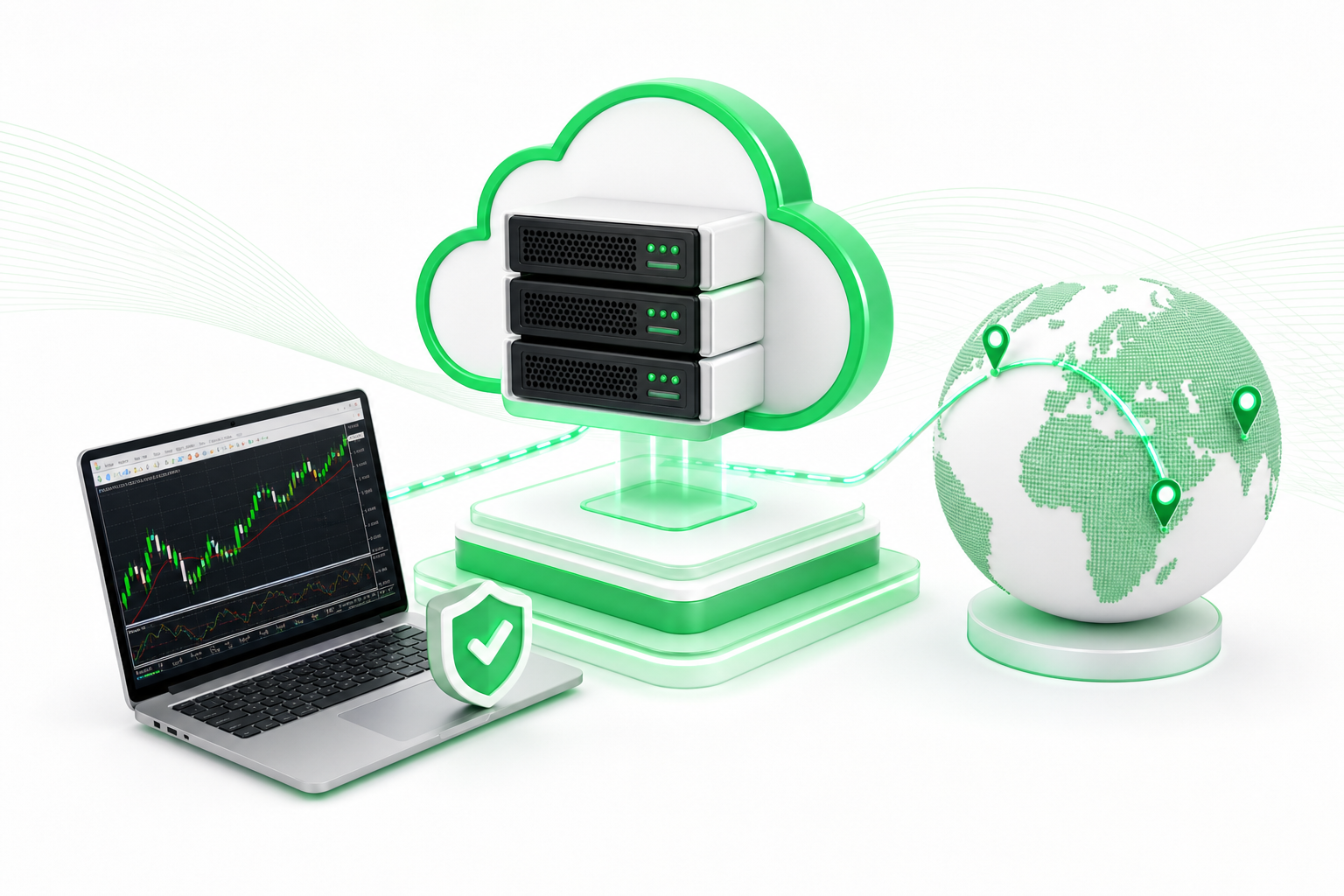
A forex VPS is a remote Windows server that runs MetaTrader 4 or 5 around the clock, so your Expert Advisors keep trading when your home PC or connection fails. To set one up, pick a server near your broker's data center, connect over RDP, install MT4/MT5, load your EAs, and verify latency.
This guide walks you through each of those steps in order. First, you will see why automated strategies need uninterrupted uptime and low latency, and why a home computer rarely delivers either. Then you will learn how to choose a server location, set up the platform, check your connection, and compare the providers worth a look.
What Is a Forex VPS and Why Do MT4/MT5 Traders Use One?
A forex VPS (Virtual Private Server) is a rented slice of a powerful computer in a data center, running Windows, that you control remotely. You install MetaTrader 4 or 5 on it and leave it running, even when your own devices are off.
Why bother? Forex is the largest financial market in the world, with trillions of dollars exchanged daily, and it trades around the clock on weekdays. An Expert Advisor (EA) is a program that opens and closes trades by rules you set. It only works while the platform is running and connected.
ForexBrokers.com calls a forex VPS essential for automated strategies that need low-latency execution and uninterrupted uptime, in its 2025 guide. Most EA users learn why the hard way: a missed signal or a dropped connection can mean a missed entry or an unmanaged open position.
So what does this mean for you? A VPS gives your bots a stable home. You connect to it only when you want to check on things.
VPS vs. Trading From a Home PC: What Actually Changes?
The main change is reliability. A home PC depends on your power, your router, your internet provider, and your own habits. A VPS moves the platform to a facility built to avoid those failure points.
Here is how the two compare for someone running EAs:
| Factor | Home PC or laptop | Forex VPS |
|---|---|---|
| Uptime | Stops when you shut down, sleep, or restart for updates | Designed to run continuously |
| Power cuts | Platform goes offline | Data centers use backup power |
| Internet drops | EAs lose their broker connection | Connection sits on a data center network |
| Distance to broker | Often far, with variable routing | Can be chosen near your broker's server |
| Access | Only from that machine | Remote desktop from any device |
| Your own load | Shares resources with browsing, video, and updates | Dedicated to your trading platform |
None of this makes a VPS a guarantee. It removes common home-setup risks, and that matters most for automated trading, where, per ForexBrokers.com, uninterrupted uptime and low-latency execution are the core requirements.
If you only place trades by hand while sitting at your screen, the gap is smaller. You are there to react, and a brief outage costs you little. The more hours your strategy runs unattended, the stronger the case for a VPS.
How Does VPS Latency Affect Trade Execution?
Latency is the time a signal takes to travel from your platform to your broker's server and back. The lower it is, the sooner your order reaches the broker, and the closer your fill lands to the price you saw when the EA fired.
Distance drives most of it. Data travels fast, but every extra network hop adds delay. That is why many traders look up where their broker's trading server sits (for example, Equinix NY4 for many US brokers or LD4 for UK brokers) and pick a VPS in or near that facility.
When you read vendor latency claims, keep two things in mind:
- Cloudzy's claims, as reported by ForexBrokers.com in 2025, put latency to Equinix LD4 and NY4 in single-digit milliseconds.
- QuantVPS says its dedicated servers on the NY4 campus reach NY4-hosted brokers in under 1ms.
Both are vendor claims, not independent measurements, and they describe best-case routes to specific facilities. Treat these numbers as a starting point for your own test, not a promise.
Uptime matters just as much as speed. Look for a provider that describes its availability and redundancy clearly, and ask what happens when a server fails. You will check the real numbers yourself in a later step.
How Do You Set Up a VPS for Forex Trading? (Steps 1 to 3)
Setting up a forex VPS takes three actions: find where your broker's server lives, pick a VPS near it, and connect over Remote Desktop. Do them in that order.
- Find your broker's server location. Ask your broker's support team, or check their documentation, where their trading server is hosted. Common examples are Equinix NY4 for US brokers and LD4 for UK brokers. Write down the facility name, because it decides which VPS location you pick next.
- Choose a VPS in or near that facility. Match the data center city to your broker's, and check that the plan runs Windows, since MT4 and MT5 are Windows programs. If your broker's server is in the US, a general-purpose VPS in the US from Napoleon is one option to test, and Napoleon's guide to VPS servers explains how they work. It is not forex-specialized, so you will confirm its latency yourself in the last section rather than assume it.
- Provision the VPS and connect over RDP. Once the server is created, your provider sends an IP address, a username, and a password. Remote Desktop Protocol (RDP) is Windows' built-in tool for controlling another computer over the internet. Open Remote Desktop Connection on Windows (or the Microsoft Remote Desktop app on Mac, Android, or iOS), enter the IP address, and sign in.
Simple! Your VPS desktop now appears in a window on your own screen.
A few habits save trouble early on:
- Change the default password right away, and use a long, unique one.
- Keep the login details in a password manager, not in a chat message or note.
- Note which time zone the server uses, so EA logs and broker timestamps line up when you troubleshoot.
If a provider offers a trial or a money-back window, use it to test your setup before you commit to a longer plan. A short test costs little and tells you far more than a spec sheet.
How Do You Install MT4 or MT5 and Load Your Expert Advisors?
Once you are inside the VPS, the work is the same as on any Windows computer: install the platform, log in to your broker account, and attach your EAs. Follow the steps below.
- Download the platform inside the VPS. Open a browser on the VPS, not on your home PC, and download MetaTrader 4 or 5 from your broker's website. Broker-branded builds already include the right server list for your account.
- Run the installer. Accept the defaults unless you need a custom folder. Open the platform when it finishes.
- Check the build. As of 2026, the current MT4 build is 1470 (released March 12, 2026) and the current MT5 build is 5830 (released April 24, 2026), per vpsforfx.com. If yours is older, use the platform's update prompt so your EAs run on a supported version.
- Log in to your broker account. Go to File, then Login to Trading Account, and enter your account number, password, and the broker's server name.
- Copy your EAs across. In the platform, choose File, then Open Data Folder, and place your EA files in the MQL4 or MQL5 Experts folder. Restart the platform or refresh the Navigator panel so they appear.
- Attach an EA to a chart. Open the chart for the symbol and timeframe your strategy needs, then drag the EA onto it from the Navigator panel. Review its input settings before you confirm.
- Enable algo trading. Click the Algo Trading (or AutoTrading) button in the toolbar so it turns green, and make sure the EA's own properties allow live trading. A smiley face in the chart's top-right corner confirms the EA is active.
Start with one EA on a small or demo account. Watch it for a day or two before you scale up. To run both MT4 and MT5, install each in its own folder and log in separately.
Take care with anything that stores credentials or licenses. Copy only files you trust, and keep a backup of your EAs and settings off the server in case you need to rebuild it.
How Do You Verify Latency and Keep Your Bots Running 24/7?
Your last job is to prove the setup works, then make sure it keeps working. Treat this as a checklist you repeat, not a one-time test.
- Check the latency your terminal reports. In MT4 or MT5, look at the connection indicator in the bottom-right corner and hover over it to see the ping to your broker's server in milliseconds. A co-located server should report single-digit or sub-millisecond figures, though real results depend on your broker's routing. Check at different times of day, including busy sessions.
- Compare it with the vendor's claim. If a provider quotes figures like the ones in the latency section, treat them as a benchmark to test against, not a given. Your own reading is the one that counts.
- Place a test trade. On a demo or small live account, open and close a position and note how quickly the platform confirms it. Slow or inconsistent fills point to a routing or load problem.
- Set the VPS to run continuously. Disconnect from RDP by closing the window, not by logging off or shutting down, so your session and the platform stay open. Turn off sleep and hibernation in Windows power settings.
- Plan for restarts. Windows updates can reboot the server. Set the platform to launch at startup, and set Windows to sign in automatically so your EAs resume without you.
- Monitor from a distance. Reconnect over RDP once or twice a day to confirm the platform is online, the EAs are active, and the account is connected. Many brokers also offer mobile alerts or push notifications you can use as a second check.
Run this check on a routine, and a missed trade will rarely catch you off guard.
Which Forex VPS Providers Are Worth Comparing?
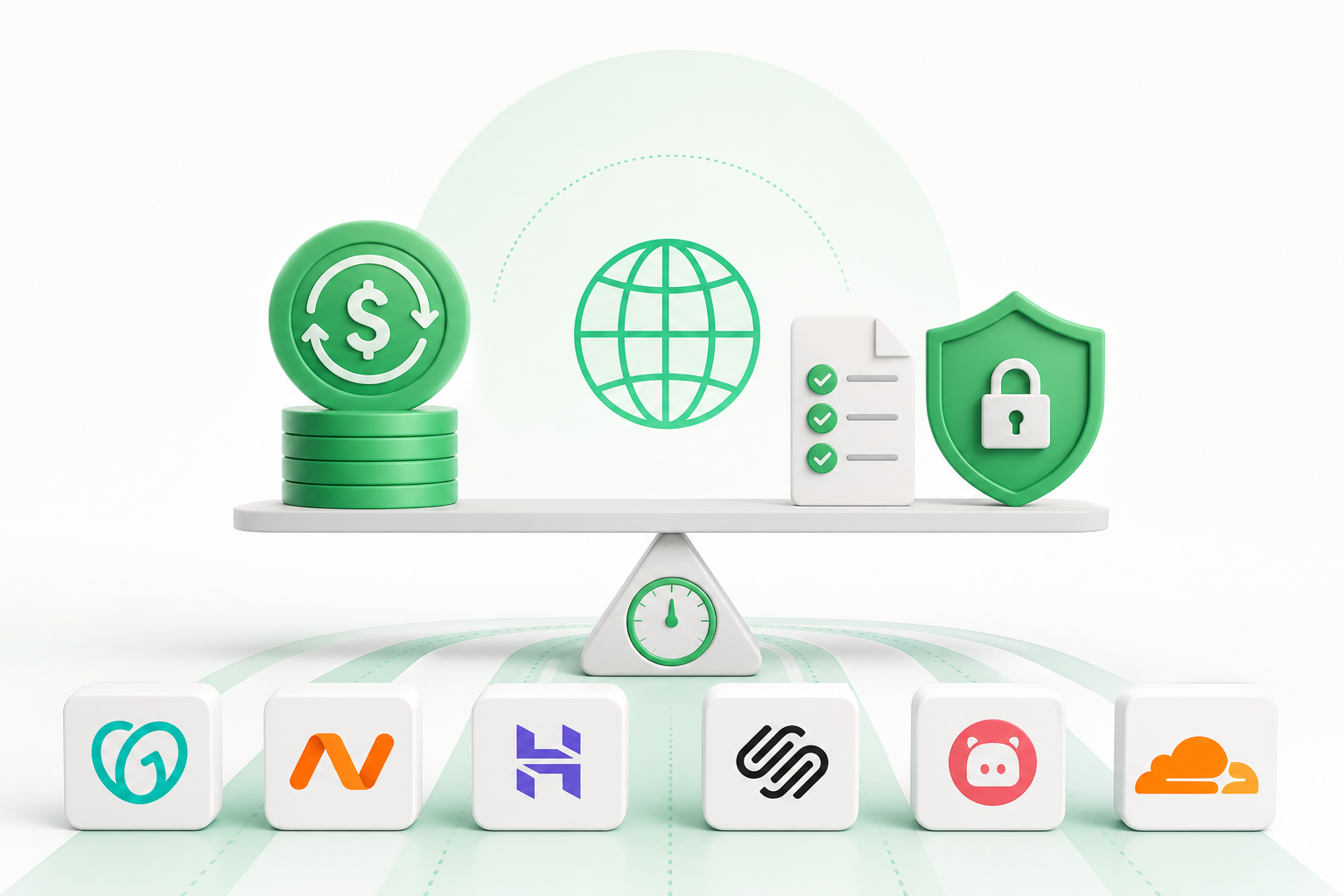
If you want a specialist forex VPS rather than a general-purpose server, six providers come up most often. The table below sorts them by where they host, what they support, and what sets them apart. Every entry reflects vendor-stated or review-site information, so treat it as a shortlist to test, not a ranking.
| Provider | Data center locations | MT4/MT5 support | Notable feature |
|---|---|---|---|
| BeeksFX VPS | Equinix data centers across six financial hubs | Windows Server 2022 plans | Broker partnerships with free or reimbursed plans at some brokers |
| ForexVPS.net | 22 global locations | MT4, MT5, and cTrader | Free trade copier on every plan |
| FXVM | Equinix LD4, NY4, AM6, and TY8 | MT4 and MT5 | Low-cost entry with a short paid trial |
| Cloudzy Forex VPS | 13 regions, including London, New York, and Singapore | MT4 pre-installed on its Supersonic plan | Accepts cryptocurrency payments |
| VPSForexTrader | Equinix NY4 and LD4 | MT4 and MT5, with multiple instances on higher plans | AMD EPYC processors, ECC RAM, and NVMe SSD on every tier |
| TradingFXVPS | Includes a documented Chicago CME Aurora location | MT4 and MT5 | AMD Ryzen processors built for high single-core speed |
A few notes help you read it. ForexVPS.net has the largest verified Trustpilot base among forex VPS providers, at over 6,400 reviews, per vpsforfx.com's 2026 comparison. It also calls itself the top provider in 2026, but that ranking comes from forexvps.net itself, so weigh it accordingly. FXVM and ForexVPS.net share an operator, which matters if you want infrastructure that is truly separate for redundancy.
Cloudzy's single-digit-millisecond latency and QuantVPS's under 1ms figure are vendor claims, as covered earlier. Use them as targets for your own test.
Whichever provider you pick, test its latency against your broker's server before you commit.
Prices and plan limits verified as of November 2026.
FAQs
Can you make $100 a day on forex?
Nobody can promise you a daily income from forex. Results depend on your strategy, capital, risk control, and market conditions, and many retail traders lose money. A VPS keeps your platform online, but it does not make a strategy profitable. Treat any income promise with caution, and test on a demo account first.
Why would someone use a VPS for forex trading?
You run a VPS so automated strategies keep trading when a home PC, power supply, or internet connection fails. It also lets you choose a server close to your broker's data center, which can cut delay.
How do I create a VPS for forex trading?
First, find where your broker's trading server is hosted. Next, choose a Windows VPS in or near that location and set it up. Then connect through Remote Desktop Protocol using the IP address and login your provider sends. Finally, install MT4 or MT5, load your EAs, and verify latency.
What is forex VPS hosting?
Forex VPS hosting is a rented virtual Windows server, usually in a data center, built to run trading platforms like MT4 and MT5 continuously. You control it remotely over RDP. Many providers place servers near major broker facilities so your orders travel a shorter distance.
Do I need a VPS if I only trade manually?
Usually not. If you place trades by hand while watching your screen, a brief outage costs you little, since you can react yourself. A VPS pays off when strategies run unattended, such as EAs, scripts, or trade copiers, where downtime can mean missed entries or unmanaged positions.
Can I run both MT4 and MT5 on the same VPS?
Yes, if the server has enough resources. Install each platform in its own folder and log in separately. Plan capacity first, since each instance uses memory and CPU. Some providers cap the number of instances per plan, so check that limit before you add more terminals.
Conclusion
A forex VPS is worth it when your strategy runs without you. Pick a server near your broker's data center, set up MT4 or MT5 over RDP, and judge the result by the latency your own terminal reports, not by a vendor's claim.
Before you commit, find your broker's server location, then run a short trial on a demo account. Check ping at different times of day, confirm your EAs restart after a reboot, and only then move to a longer plan.