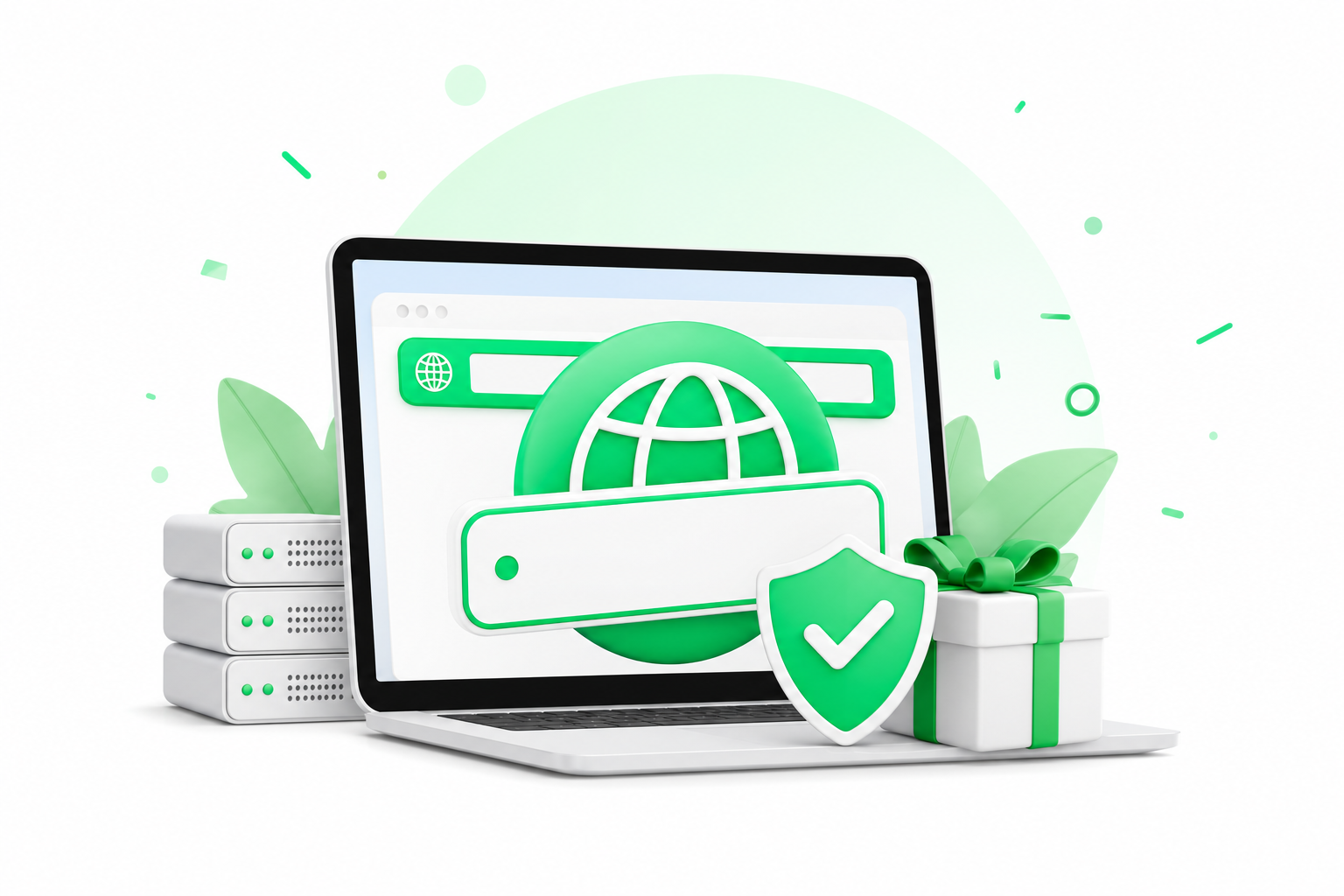
cPanel hospedagem gives you a browser-based dashboard to manage your website files, email, databases, and security without touching a command line. Beginners use it to install WordPress, create professional email addresses, and upload files in minutes.
This guide walks you through each core task in the order you actually need it: logging in, installing WordPress, managing files and email, and securing your site. Along the way it also points out where to check your account's resource usage so you always know how much disk space and bandwidth you have left.
What Is cPanel Hospedagem and Why Do Beginners Need It?
cPanel is a web-based control panel that runs on Linux servers and gives you a visual interface to manage your entire hosting account. Instead of typing commands into a terminal, you click icons and fill in forms. That single difference is why most beginners start here.
The scale of adoption is real. Enlyft currently tracks 2,388,096 companies using cPanel technology across its database. Similarweb data identifies 1,580,315 websites actively using cPanel as of July 2026. Those numbers reflect how deeply the panel is embedded in the hosting industry, not just with large companies but with small businesses, freelancers, and first-time site owners.
What does cPanel actually give you? Its main modules cover the tasks you hit every week:
- File Manager lets you work with your site's files directly in the browser.
- Email Accounts lets you create and manage addresses tied to your domain.
- Databases store the content and settings your WordPress site depends on.
- Domains lets you manage subdomains and related domain settings.
- Security tools give you controls for certificates, access restrictions, and server-level protections.
One honest caveat: cPanel can feel overwhelming at first. The dashboard shows dozens of icons at once, and it is easy to change a setting without understanding what it controls. That is exactly why this guide covers each task in order, so you build confidence step by step rather than clicking around and hoping for the best.
How to Log In and Navigate the cPanel Dashboard
Your hosting provider sends you a welcome email with your cPanel login URL, username, and temporary password. The URL usually looks like yourdomain.com:2083 or a direct link such as cpanel.yourdomain.com. Bookmark it right away.
Once you have those details, here is how to get in and orient yourself:
- Open your browser and go to the cPanel login URL from your welcome email.
- Enter your username and password, then click Log In.
- On your first visit, cPanel may prompt you to change your password. Do it, and store the new one in a password manager.
- Look at the top of the dashboard for the search bar. Type any feature name there, such as "email" or "MySQL," and cPanel jumps straight to it. This is the fastest way to find any tool until the layout becomes familiar.
- Scroll down to see the full icon grid, organized into sections: Files, Databases, Email, Domains, Security, and Software.
- Find the Preferences section and set your language and contact email address so notifications reach you.
The cPanel dashboard layout varies slightly depending on your hosting provider, but the core sections above are part of every standard installation.
Your cpanel account also shows resource usage at the top of the screen: disk space, bandwidth, and the number of email accounts and databases you have created. Check those figures after each major change so you always know where you stand.
How to Install WordPress Through cPanel in Minutes
WordPress installation used to mean creating a database manually, uploading files via FTP, and editing a configuration file. Softaculous removes all of that. It is an auto-installer built into most cPanel plans that deploys WordPress, Joomla, Magento, and more than 400 other applications with a few clicks.
Follow these steps:
- Log in to cPanel and search for Softaculous Apps Installer in the search bar, or find it in the Software section.
- Click the Softaculous icon. On the next screen, find WordPress at the top of the list and click Install Now.
- Choose the protocol (select https if your SSL certificate is already active) and select the domain where WordPress should install.
- Fill in the site name, admin username, admin password, and admin email. Use a strong password here, not the same one as your cPanel login.
- Scroll down and click Install. Softaculous creates the database, uploads the WordPress files, and configures everything automatically.
- When the progress bar finishes, Softaculous shows you two links: your new site's front page and the WordPress admin login at yourdomain.com/wp-admin.
The whole process takes under five minutes. For a full walkthrough with screenshots, the Como Instalar WordPress em Hospedagem cPanel em 2026: Passo a Passo guide covers every screen in detail.
Managing Files, Domains, and Email Accounts in cPanel
Three tasks come up constantly once your site is live: moving files around, adding subdomains, and setting up a professional email address. cPanel handles all three from the same dashboard.
File Manager
File Manager lets you work with your site's files directly in the browser. To upload files, open File Manager from the Files section, go to the public_html folder, and click Upload. You can drag files from your desktop or browse to select them. To unpack a zip archive, right-click it and choose Extract. Use this whenever you need to replace a theme file, add a custom script, or restore a backup you downloaded locally.
A few habits keep things tidy: always keep a copy of any file before you edit it, and never delete anything from public_html unless you are certain what it does.
Subdomains
Subdomains let you create separate sections of your site, like blog.yoursite.com or store.yoursite.com, without buying a new domain. Go to the Domains section, click Subdomains, type the prefix you want, and select the root domain from the dropdown. cPanel creates the subdomain and a matching folder inside public_html automatically.
Professional Email
A professional email address tied to your domain looks far more credible than a free Gmail or Yahoo account. To create one, go to the Email section and click Email Accounts. Click Create, choose your domain from the dropdown, type the username (the part before the @), and set a strong password. Your new address is ready within seconds.
To read and send mail from a browser, use webmail by going to yourdomain.com/webmail.
How Does cPanel Keep Your Hosting Account Secure?
cPanel includes several security tools that work without any configuration on your part, plus others you can turn on once your site is live.
cPanel's security section gives you controls for SSL certificates, so your site loads over an encrypted connection. Browsers flag unencrypted sites as "Not Secure," which drives visitors away and hurts search rankings.
You can also restrict access by blocking specific IP addresses if you notice repeated failed login attempts in your logs. Additional controls let you limit which external sites can embed your files, protecting your bandwidth.
Imunify360 provides real-time protection against malware, brute force attacks, and intrusions using artificial intelligence, identifying and blocking threats before they reach your files. You do not configure it yourself; it runs quietly in the background and reports detected threats to your host.
For your own part, two habits matter most: keep WordPress, its themes, and its plugins updated, and use a unique strong password for your cPanel account that you store nowhere else.
cPanel vs. Alternatives: Which Control Panel Should You Choose?
cPanel is the most widely recognized hosting control panel, but its market mindshare has declined to 12.1% as of early 2026, according to PeerSpot engagement tracking via commandlinux.com. That shift reflects real competition from both commercial and open-source alternatives. Choosing the right panel depends on your role: site owner, reseller, or server administrator.
For a detailed side-by-side breakdown of the main options, the cPanel vs. DirectAdmin vs. Plesk comparison covers the differences that matter most for hosting decisions.
Here is how the main panels compare at a glance:
| Panel | Best for | License model | Open source |
|---|---|---|---|
| cPanel | Individual site owners and beginners on shared hosting | Paid, per-account pricing | No |
| WHM (Web Host Manager) | Resellers and server admins managing multiple cPanel accounts | Bundled with cPanel server license | No |
| Plesk | Windows or Linux server owners who want a commercial alternative to cPanel | Paid, per-domain or per-server | No |
| CyberPanel | Developers and server admins comfortable with command-line setup | Free core version, community-supported | Yes |
| HestiaCP | Lightweight self-hosted setups on a budget | Free, community-supported | Yes |
A few things to keep in mind as you read this table. WHM is not a separate product from cPanel. It is the administrative layer that sits above cPanel on a server, letting a reseller or admin create and manage individual cpanel accounts. If you are just running one site, you will never need WHM directly.
The table above summarizes the key differences between these panels.
If you are picking a VPS and choosing your own panel, weigh the learning curve against the licensing cost before committing.
What Is cPanel Cloud Hosting and Is It Right for You?
cPanel cloud hosting combines the cPanel dashboard with a cloud-based server. The tradeoff compared to entry-level shared plans is that cloud plans typically cost more.
For a beginner launching a first site or small blog, shared cPanel hosting is usually the right starting point. It costs less, requires no server management, and gives you the full cPanel dashboard covered throughout this guide. Cloud or VPS hosting with cPanel makes more sense once you outgrow shared resources, run a store with steady traffic, or need a specific server configuration.
Napoleon is a web infrastructure provider that offers shared hosting, VPS, and bare metal dedicated servers hosted in Brazil and the USA, with cPanel, DirectAdmin, and Plesk available as control panel options. For more on how cPanel fits into a cloud setup, the A Conexão Entre cPanel e Hospedagem Cloud guide explains the relationship in detail.
Prices and plan limits verified as of October 2026.
FAQs
Does cPanel still exist?
Yes, cPanel is still actively developed and widely used. Its market mindshare has declined in recent years, reaching 12.1% as of early 2026 per PeerSpot tracking, which reflects growing competition from open-source alternatives. It remains one of the most recognized hosting control panels available, and most major shared hosting providers still offer it as a standard option.
Is cPanel owned by GoDaddy?
No. cPanel is not owned by GoDaddy. The two are separate companies. cPanel was acquired by Oakley Capital in 2019 and operates independently. The two are separate companies, and using a product is not the same as owning it.
How much does cPanel cost per month for an independent server owner?
cPanel charges hosting providers on a per-account basis, and those costs are passed on to customers in various ways. For an independent server owner who licenses cPanel directly to run on a VPS or dedicated server, the cost is noticeably higher than what you pay as part of a shared hosting plan. If budget is the main concern, the open-source alternatives listed in the comparison table above do not carry a licensing fee, though they require more hands-on setup.
What is the difference between cPanel and WHM?
cPanel is the interface you use to manage a single hosting account: files, email, databases, and domains. WHM (Web Host Manager) sits above cPanel at the server level and lets an administrator or reseller create, configure, and monitor multiple cPanel accounts from one place. If you are running one website, you work entirely inside cPanel. WHM only becomes relevant if you are reselling hosting or managing a server with many accounts on it.
Can I use cPanel on a VPS or only on shared hosting?
You can use cPanel on a VPS or a dedicated server, not just on shared hosting. Many hosting providers offer VPS plans with cPanel pre-installed. The difference is that on shared hosting the provider manages the server for you, while on a VPS you have more control and responsibility over the environment. The cPanel interface covers the same core tasks either way.
Conclusion
cPanel is a graphical hosting control panel that lets you manage files, email, databases, and security from one browser-based dashboard, without writing a single line of code. For most beginners, it is the fastest path from a blank hosting account to a working WordPress site with a professional email address attached.
Start by logging in and bookmarking your cPanel URL. Then install WordPress through Softaculous, create your first professional email address, and check the SSL/TLS section to confirm your certificate is active. Those four steps cover everything you need for a site that is live, secure, and ready to grow.